The new Operations Manager Management pack 6.1.7672.0

A new version of the Operations Manager Management Pack vas released yesterday.

Download: http://www.microsoft.com/downloads/details.aspx?displaylang=en&FamilyID=61365290-3c38-4004-b717-e90bb0f6c148

And a nice change is that they have made the rules that monitor failure of scripts, commands and WMI queries less noisy and easier to understand. The rules has also been renamed, new names is listed in the following table:

Old name

New name

Alert on Failure to Create Process for Batch Response

Workflow Initialization: Failed to start a process or script

Alert on Failed Batch Responses

Workflow Runtime: Failed to run a process or script

WMI Probe Module Runtime Failure

Workflow Runtime: Failed to run a WMI query

WMI Probe Module Initialization Failure

Workflow Initialization: Failed to start a workflow that queries WMI

WMI Event Module Runtime Failure

Workflow Runtime: Failed to run a WMI query for WMI events

WMI Event Module Initialization Failure

Workflow Initialization: Failed to start a workflow that queries WMI for WMI events

WMI Raw Performance Counter Module Runtime Failure

Workflow Runtime: Failed to run a WMI query for performance data

WMI Raw Performance Counter Module Initialization Failure

Workflow Initialization: Failed to start a workflow that queries WMI for performance data

(new rule)

Workflow Initialization: Failed to start a workflow that runs a process or script


So if you have alot of script failuers and WMI errors import this MP!

The catalog accessible from the console has not been updated with the new version when this is published.

1E System Center Watcher Tool v1 released

I couple of weeks ago I had the pleasure to beta test Dan Kregors tool OMWatcher. And I must say, this is a great tool that I will use at many customer sites…

This is the answer when some one is asking: “But who is watching the watcher?” Meaning, who is monitoring OpsMgr. Well the answer i OMWatcher!

Overview

The 1E OMWatcher tool for System Center Operations Manager 2007 fills an important, and often overlooked gap in every OpsMgr environment.

Arising from the question…

“Who’s watching the watcher?”

… 1E OMWatcher is designed to monitor the 3 critical service on the Root Management Server (SDK, Config and HealthService). 1E OMWatcher will proactively mitigate unnecessary and potentially expensive downtime by ensuring the RMS is active (via a ping), and taking remedial action should one of the core RMS services stop. In addition, 1E OMWatcher will notify administrators (via email) were an issue arises.

1E OMWatcher should be installed on a server other than the RMS (preferably on a secondary Management Server), and configured to run under an account that has local administrative rights on the RMS.

Key Features
  • Actively pings the RMS at regular polling intervals, alerting (via email) should the RMS not respond (indicating the potential for the server to be offline).
  • Checking the status for the 3 OpsMgr services, ensuring they are running. In the event that a service is stopped, OMWatcher will attempt to restart the service, and will alert (via email) that the service had stopped.
  • Checking the startmode for the OpsMgr service, they are not set to disabled. In the event that a service is set to disabled, OMWatcher will set the service to Automatic, restart the service, and will alert (via email) that the service was set to Disabled and stopped.

More here: http://opsm.gr/2010/05/28/1e-system-center-watcher-tool-v1-now-available/
Download here (registration required): http://www.1e.com/Downloads/FreeTools/Index.aspx

32bit management pack on 64bit Windows Server

When using a management pack designed to discover a 32bit application and that application is installed on a 64bit server OS the application will probably not get discovered.

This is because the 32bits app will write its registry keys in the HKLM\SOFTWARE\Wow6432Node\ (because its a 32bit app on a 64bit system) and the discovery will look for keys and values in HKLM\SOFTWARE\

To resolve this you can either create the registry keys under HKLM\SOFTWARE or install a 32bit agent on the system.
If you install the 32bit agent it will bee replaced every time you do a upgrade from the console, and worse you wont bee able to monitor your 64bit system properly.

When author MP’s for OpsMgr 2007 R2 there is a new feature that can be used in the discovery.
<RegistryView>32bit</RegistryView>

Should go somthing like this:

<RegistryAttributeDefinition>
  <AttributeName>TheApplication</AttributeName>
  <Path>SOFTWARE\TheApplication</Path>
  <PathType>0</PathType>
  <AttributeType>0</AttributeType>
  <RegistryView>32bit</RegistryView>
</RegistryAttributeDefinition>

And this will make it look in the Wow6432Node

Edit Company Knowledge

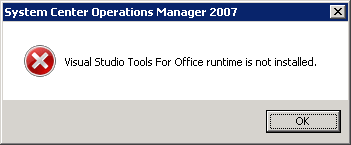
When you try to edit Company Knowledge on a rule or a monitor you need Word installed from Office Professional, not standard professional! And then you need to install “Visual Studio Tools For Office runtime”. If you don’t have VSTOR installed you will get the following error:
Visual Studio Tools For Office runtime is not installed.
image

Download for VSTOR is here: Visual Studio Too………
Be sure to grab the one for the same language your Office installation is in, otherwise you’ll end up with the same error as above.

And yes, you can edit your Company Knowledge with Office 2010!

Install OpsMgr on SQL 2008 R2

When installing OpsMgr on SQL 2008 R2 the installation will not find the SQL instance and give the following error: Microsoft SQL Server is required. Please see details

prereq 

To go around this requirement, use the DBCreateWizard.exe that you find on the OpsMgr media \SupportTools\<architecture>\DBCreateWizard.exe

Observe that this is NOT TESTED OR SUPPORTED by Microsoft!!!

And that one will find the instance.

sqlr2

Observe that this is NOT TESTED OR SUPPORTED by Microsoft!!!

Certificate error when installing agent on Unix/Linux

Some times when installing X-plat agents you get an error:

The server certificate on the destination computer (server:1270) has the following errors:    
The SSL certificate contains a common name (CN) that does not match the hostname.

The problem here is that Operations Manager uses the FQDN in the DNS, but the certificate will contain the server name taken from the server.
To solve this issue you can change the DNS record, change the server name or you can add the server name to the HOSTS file on the Root Management Server or the Management Server.

Example:
192.168.80.37 name.in.certificate

Scheduling OpsMgr PowerShell scripts

When scheduling an Operations Manager PowerShell script you have to load the powershell snapins.

Insert this in the beginning of your script

$ServerName = “hostname”
add-pssnapin “Microsoft.EnterpriseManagement.OperationsManager.Client”;
set-location “OperationsManagerMonitoring::”;
new-managementGroupConnection -ConnectionString:$ServerName;
set-location $ServerName;

Tips: Downloading from MSDN/TechNet

When downloading from MSDN/TechNet use the “Top download” if your product is available there. The download speed is higher.

Installing Operations Manager agent on Solaris 9 SPARC

Today when installing OpsMgr R2 agents on a couple of Solaris servers we ran in to a problem on the Solaris 9 servers.

The error we got in OpsMgr:
<![CDATA[Executing command: echo -e mail=\ninstance=overwrite\npartial=nocheck\nidepend=quit\nrdepend=quit\nconflict=nocheck\naction=nocheck\nbasedir=default\n > /tmp/scx-$USER/scx;uncompress -f /tmp/scx-om_unix/scx-1.0.4-248.solaris.9.sparc.pkg.Z

solariserror

We found this on the Solaris box:
[ verifying class <config> ]
## Executing postinstall script.
ld.so.1: .scxsslconfig: fatal: libssl.so.0.9.7: open failed: No such file or directory
Killed
pkgadd: ERROR: postinstall script did not complete successfully
Installation of <MSFTscx> failed.
bash-2.05# ssh –version
Sun_SSH_1.1, SSH protocols 1.5/2.0, OpenSSL 0x0090700f
Bad escape character ‘rsion’.

And if you look in Appendix A in the Operations Manager 2007 R2 Operations Guide you se that OpenSSL is required. So after installing OpenSSL the agent install went fine!
Sun does not provide a version of OpenSSL for Solaris 9 SPARC. There is a version available from Sunfreeware.

PowerShell: List agent based on setting

Based on the data you get from the cmdlet get-agent you can list all agents with a specific setting.

This line for example, will list all agents with the Agent Proxy setting enabled:
get-agent | where {$_.ProxyingEnabled -like $true}

Change $_.ProxyingEnabled to $_.ManuallyInstalled and you’ll get a list with all manually installed agents.

In OM2007 SP1 there is a bug on updating the ManuallyInstalled property, so that wont work. This is corrected in R2.
If you dont have to use powershell there is a workaround in this thread.

 
Your options are:
PrimaryManagementServerName
Id
LastModified
Name
DisplayName
HostComputer
HostedHealthService
HealthState
PrincipalName
NetworkName
ComputerName
Domain
IPAddress
Version
RequestCompression
CommunicationPort
MaximumSizeOfAllTransferredFilesBytes
MaximumQueueSizeBytes
ManuallyInstalled
InstallTime
InstalledBy
CreateListener
AuthenticationName
ActionAccountIdentity
HeartbeatInterval
ProxyingEnabled
ManagementGroup
ManagementGroupId